
Automatic PC backups. One-click recovery.
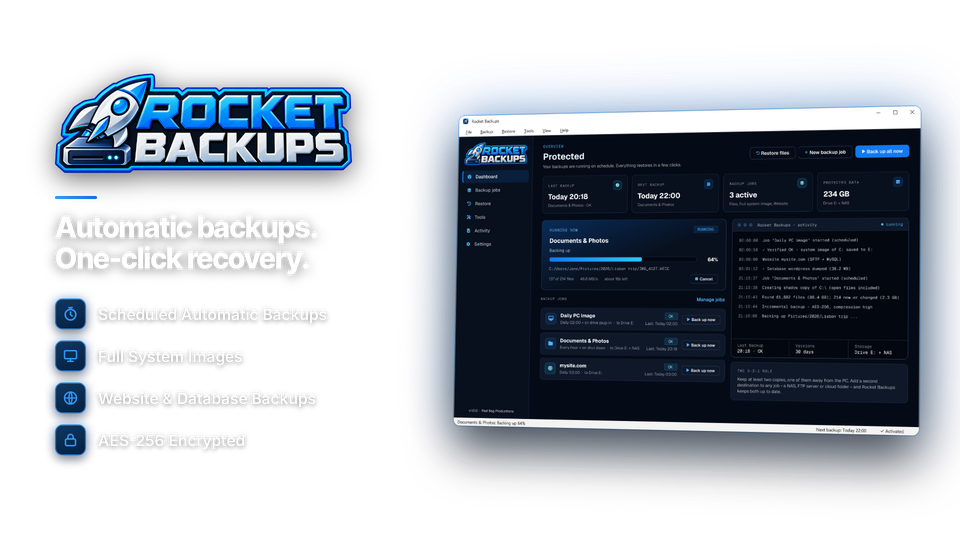
Rocket Backups quietly backs up your whole PC, your drives, your important folders and your websites on a schedule, then gets everything back in minutes when a drive dies, Windows crashes or ransomware strikes. Backups are encrypted, verified after every run and stored on your own drives, NAS, server or cloud folder.
Back up everything that matters, automatically.
Windows' own tools are limited and cloud backup charges every month. Rocket Backups protects your whole PC and your websites on your own storage, for one price.
Back up
Your whole PC, any drive, or just your files
Take a full system image of Windows with your programs and settings, back up whole drives and partitions, or just the folders that matter - Documents, Desktop, Pictures, email and more. Volume Shadow Copy backs up files even while they are open and in use.
Websites and hosting accounts
Back up website files over FTP, FTPS or SFTP together with their MySQL databases, and restore a site and its databases straight back to the server.
Store backups where you want
External USB drives, a second internal drive, a NAS or network share, an FTP or SFTP server, or your cloud folder - OneDrive, Dropbox, Google Drive, iCloud or Box. Send each backup to two places for extra safety.
Fast incremental backups with version history
After the first full backup only changes are saved, as incremental or differential backups with de-duplication and compression. Old versions are tidied away by your rules - daily, weekly, monthly or a fixed number - so the backup drive never fills up.
Schedule and protect
Truly automatic scheduling
Hourly, daily, weekly or monthly, plus backups when you log in, shut down, plug in the backup drive or leave the PC idle. Missed backups catch up automatically, and backups can pause on battery.
AES-256, verified, with email alerts
Encrypt backups with AES-256 and your own password. Every backup is verified after it runs, and you get an email if a job fails, a drive is missing or space is low - plus an optional daily summary and a tray icon.
Restore and recover
Go back in time to any version
Pick a moment on the timeline, browse or search, and restore one file, a folder or everything - to where it was or somewhere new. See every version of a single file and bring back the one you want, or open a backup or system image as a drive letter and copy files straight out.
Rescue USB and disk clone
Make a rescue USB in the app, and when Windows won't start, boot from it and restore your last system image onto the same or a new drive. Move Windows to a new SSD with disk clone, which can grow the partitions to use all the space on the new drive.
Whatever happens, there's a way back.
Every kind of disaster has a recovery route built in.
| Disaster | Recovery method | Typical time |
|---|---|---|
| Deleted or overwritten a file | Timeline restore of a previous version | seconds |
| Ransomware or a virus | Version history restore to pre-infection files | minutes |
| Windows won't start | Boot from the rescue USB and restore the last system image | under an hour |
| Hard drive or SSD died | Bare-metal restore onto a new drive | under an hour |
| Laptop lost or stolen | Encrypted backup restored to a new PC | minutes to hours |
| Website hacked or broken by an update | Site and database uploaded from last night | minutes |
| Upgrading to a new SSD | Disk clone, swap in, boot | under an hour |
Protected in four steps - then never think about it again.
The job editor follows the same four steps.
Choose what
PC, drives, folders or a website.
+ Documents
Choose where
USB, NAS, server or cloud folder.
copy NAS
Set a schedule
Times or triggers.
on plug-in yes
Relax
Verified, with alerts.
alerts on

For anyone who can't afford to lose it.
Photos, documents, memories
Every photo and document backed up automatically to a USB drive and your cloud folder, with any old version a click away.
Back to work in an hour
Nightly system images and a rescue USB mean a dead drive or ransomware is an hour's job, not a lost week.
Sites and databases covered
Website files and MySQL databases backed up over FTP or SFTP every night, and restored straight back when an update breaks something.
One license. Everything protected. Yours to keep.
System images, file and website backups, encryption, rescue USB and disk clone are all included. No subscription, no storage fees, free updates.
- Backup jobsunlimited
- Storage feesnone - your own storage
- Works onWindows 10 & 11 (64-bit)
- Updatesfree
- Activations1 PC
- Deliverydownload + key by email
Checkout
You'll go straight to your download page once payment is confirmed, and we'll email your download link and license key.
Already bought? Get your download link again.
Backup and restore questions, answered.
What can it back up?
Your whole PC as a system image, drives and partitions, chosen files and folders (including open files), and websites with their MySQL databases over FTP, FTPS or SFTP.
Where can backups be stored?
External USB drives, a second internal drive, a NAS or network share, an FTP or SFTP server, or your cloud folder such as OneDrive, Dropbox, Google Drive, iCloud or Box. Each backup can also go to a second place.
How does the schedule work?
Choose hourly, daily, weekly or monthly, or back up when you log in, shut down, plug in the backup drive or leave the PC idle. Missed backups run the next time the PC is on.
Will backups fill my drive?
No. After the first full backup only changes are saved, data is compressed, and old versions are tidied away by your rules.
How do I recover a deleted file?
Pick a date on the timeline, browse or search for the file, and click Restore. You can also see every version of one file and bring back the one you want.
What if Windows won't start?
Boot from the rescue USB you made in Rocket Backups and restore your last system image, onto the same drive or a new one.
Can it help with ransomware?
Yes. Version history lets you restore files from before the infection, and backups can be kept on a drive that is disconnected between runs.
Are my backups secure?
Yes. Backups can be encrypted with AES-256 and your own password, every backup is verified after it runs, and you get an email if a job fails, a drive is missing or space is low.
Can I move Windows to a new SSD?
Yes. Disk clone copies Windows to the new drive and can grow the partitions to use all its space.
Which versions of Windows are supported?
Rocket Backups runs on 64-bit Windows 10 (version 1809 or later) and Windows 11. Administrator rights are needed for system images, open-file backups, the rescue USB and disk clone. You can set up jobs before activating; backing up and restoring unlock with your installation key.
Is it a subscription?
No. It is a one-time payment of $69.95 with free updates and no storage fees.
How do I get the software after paying?
You go straight to your download page once payment is confirmed, and your download link and installation key are emailed to you. In Rocket Backups, choose Settings > Enter Installation Key and click Activate.
Back up tonight. Sleep easy tomorrow.
Automatic, encrypted, verified backups on your own storage. One license, no subscription.
Get Rocket Backups · $69.95